Getting started
From signup to your first published booking page.
Download PDFSign up
Visit rcicapp.ca and select Get Started. You will choose a tier (Basic or Premium) and, on Premium, a billing cadence (monthly or annual). Coupon codes apply at this step. A confirmation email lands within seconds; click the button to verify your address.
Note: Email change after signup is owner-only. To rotate the address on a member account, the Owner triggers a password reset from Settings → Team. Members cannot self-rotate credentials.
Sign up or sign in with Google or Microsoft
Sign up or sign in with Google or Microsoft. As of 2026-06-29 both /signup and /login show "Continue with Google" and "Continue with Microsoft" buttons under the email + password form. They work in two cases:
New visitor signing up: click a provider button on /signup (terms acceptance is still required first). The provider takes you through its own consent screen, then RCIC App lands you on a short onboarding form — just business name, booking URL slug, and timezone. The default plan is 14-day Premium trial; you can change everything from Settings later.
Existing tenant signing in: click a provider button on /login and sign in with the verified email that matches your existing RCIC App account. The first time you do this, Supabase auto-links your Google or Microsoft identity to your existing user record. After that, any of email + password, Google, or Microsoft will land you on the same dashboard.
What the provider sees. RCIC App requests identity-only scopes — your email address, your display name, and a stable user identifier. We do not request access to Gmail, Outlook, Drive, OneDrive, Calendar, or any other product data. Those integrations (Phase 37A Google/Microsoft Calendar + Drive/OneDrive) use separate, isolated OAuth apps with their own scopes, configured per-tenant from /dashboard/profile or Drive Settings.
Multi-factor authentication. Provider sign-in REPLACES the RCIC App email OTP. The provider's own 2FA (security key, authenticator app, SMS — whatever you have on your Google or Microsoft account) is the second factor. If your provider account is protected, OAuth sign-in stays protected. If it is not, OAuth sign-in is single-factor and you should consider enabling 2FA on the provider side.
Email + password still works. OAuth is additive, not a replacement. Every tenant continues to be able to sign in with email + password + the 6-digit email code, including the "Remember this device for 30 days" cookie. Mix and match — the platform records the same auth user regardless of how you got in.
Known limit on some Microsoft accounts. Microsoft Entra users without a paid Microsoft 365 mailbox (i.e., directory-only accounts) may fail with "Error getting user email from external provider" because Microsoft does not return the email claim for those accounts. Workaround: sign in with a personal Microsoft account (outlook.com / hotmail.com / live.com) or use email + password. Google sign-in does not have this limit.
Onboarding
The first sign-in lands on an onboarding form. You provide your company name, business address, contact email and phone, your tenant slug (the suffix on your public booking URL), timezone, default currency, and your preferred client-page languages. Languages added here become available to clients on the booking page and on every client-facing surface that supports runtime translation.
Onboarding also seeds a default weekly availability rule of Monday-Friday 9 AM to 5 PM in your timezone. You can edit this immediately under Bookings → Availability, but the default keeps your booking page from showing zero slots in the first hour after signup.
Connect a calendar
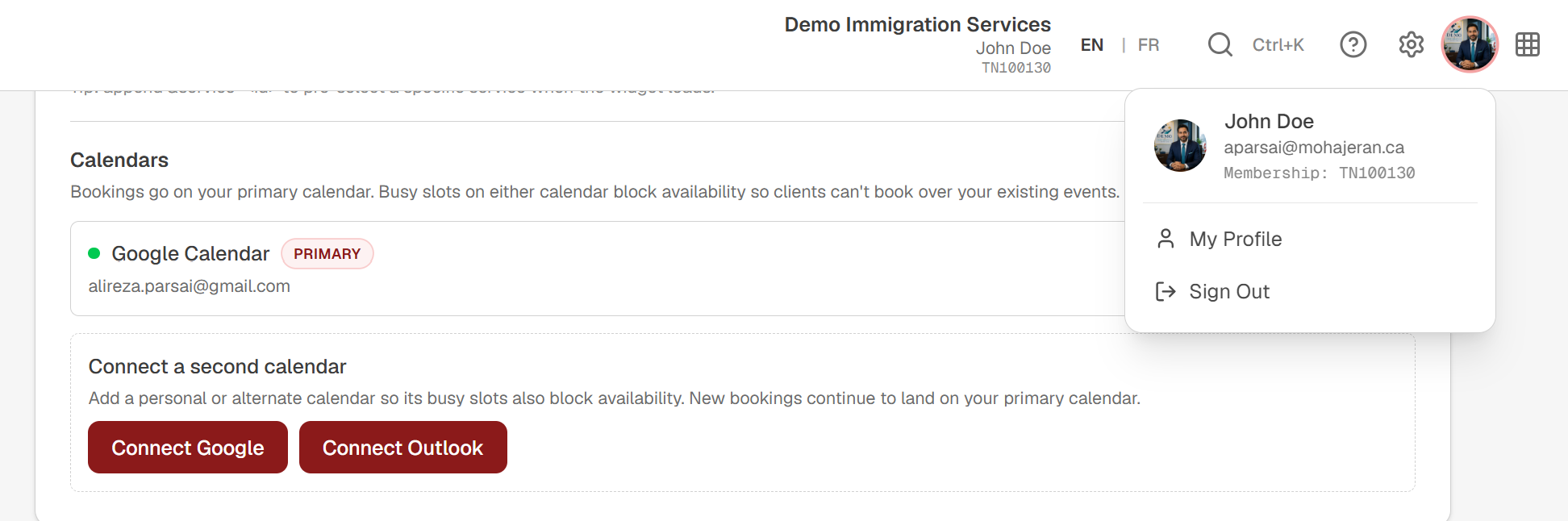
Open My Profile and connect at least one calendar — Google Calendar or Outlook Calendar through Microsoft 365. Each member can connect up to two calendars (a primary that receives the full event and a secondary that contributes busy intervals to availability checks). Without a calendar connected, the platform still runs but availability is based solely on existing in-app bookings and events. When you connect a calendar, freebusy intervals from that calendar block slots automatically.
Connect Stripe (if you accept payments)
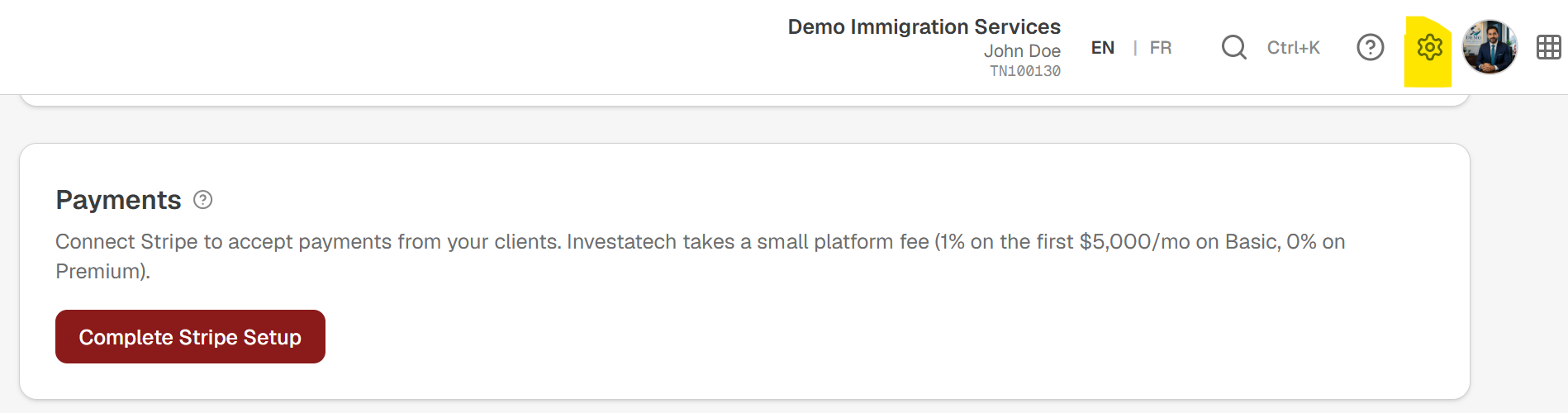
Settings → Payments → Connect Stripe runs Stripe Connect's Standard onboarding. The connected account is yours; Investatech is the platform. Each Stripe payment routes funds to your account; the platform fee (Basic 1% on the first $5,000 CAD/month of Stripe-processed payments, 0% above that cap; Premium 0%) is collected via Stripe's application fee. Your tenant timezone defines the monthly cap window.
Note: If you don't take Stripe payments, leave the account unconnected. Booking, events, Q&A, written consultations, and bills all support offline payment markers (e-Transfer, cheque, wire, cash, paid outside Stripe).
Publish Your First Service
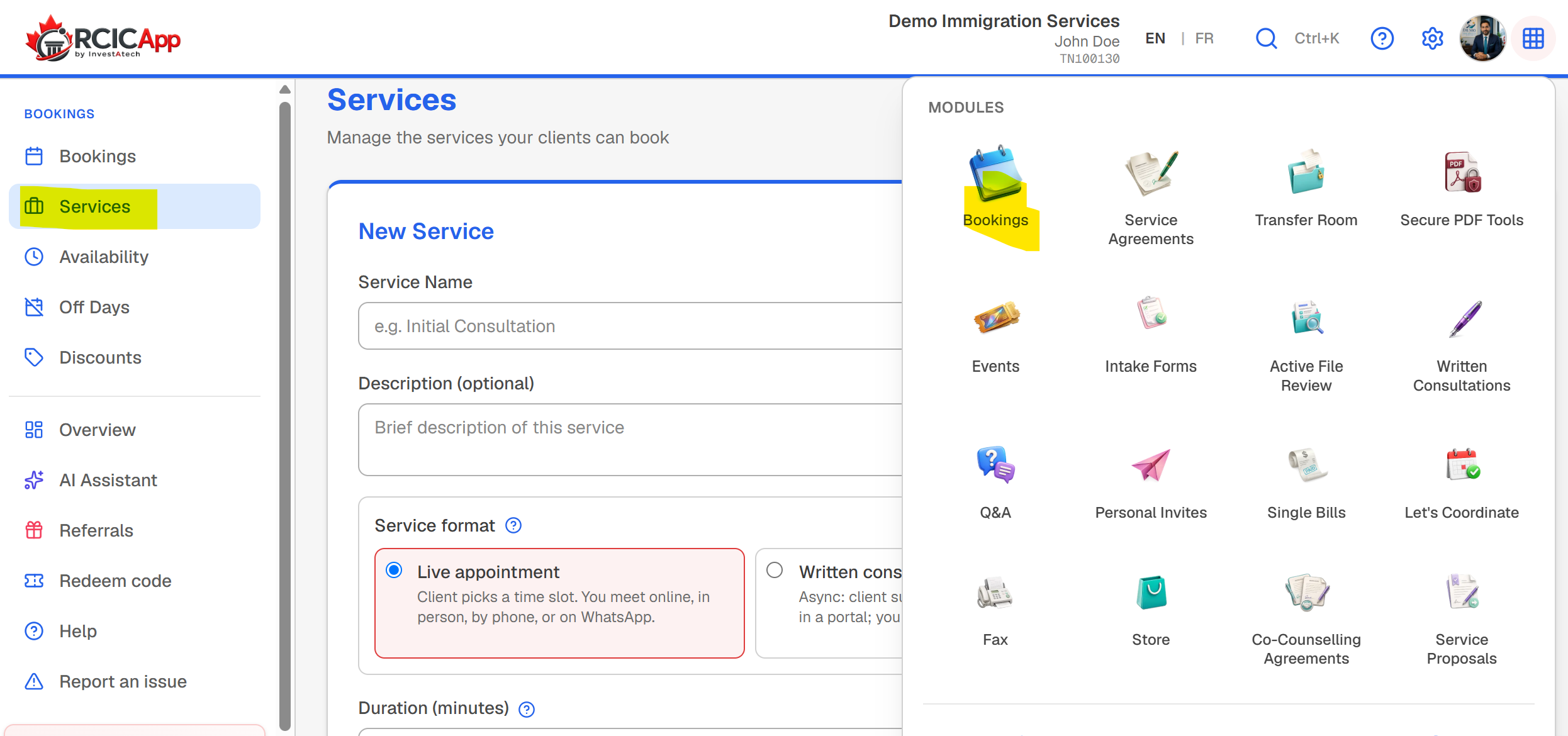
Go to Bookings and then click Services on the sidebar. Then create a service. Pick a format (live consultation, written consultation, or Q&A), a duration, a price, and a description. Tick the languages you offer for this service. Save. Your public booking page at rcicapp.ca/book/<your-slug> now lists the service.
If you self-attested as an RCIC under My Profile → Regulated Consultant, the service is allowed to require a CICC-aligned Initial Consultation Agreement on the booking page. If you haven't, the platform refuses to mark services as CICC-compliant — only attested members can.
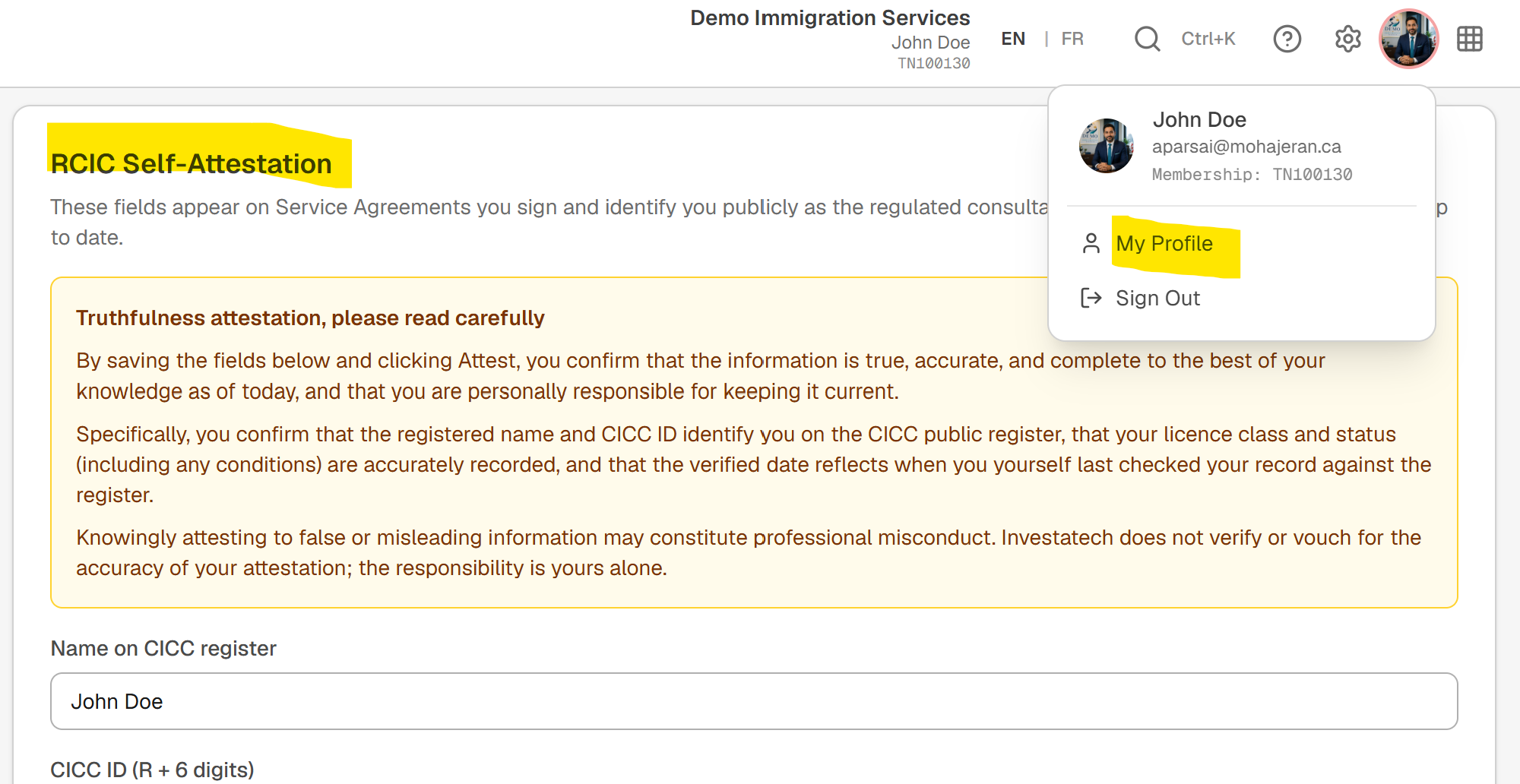
What to set up next
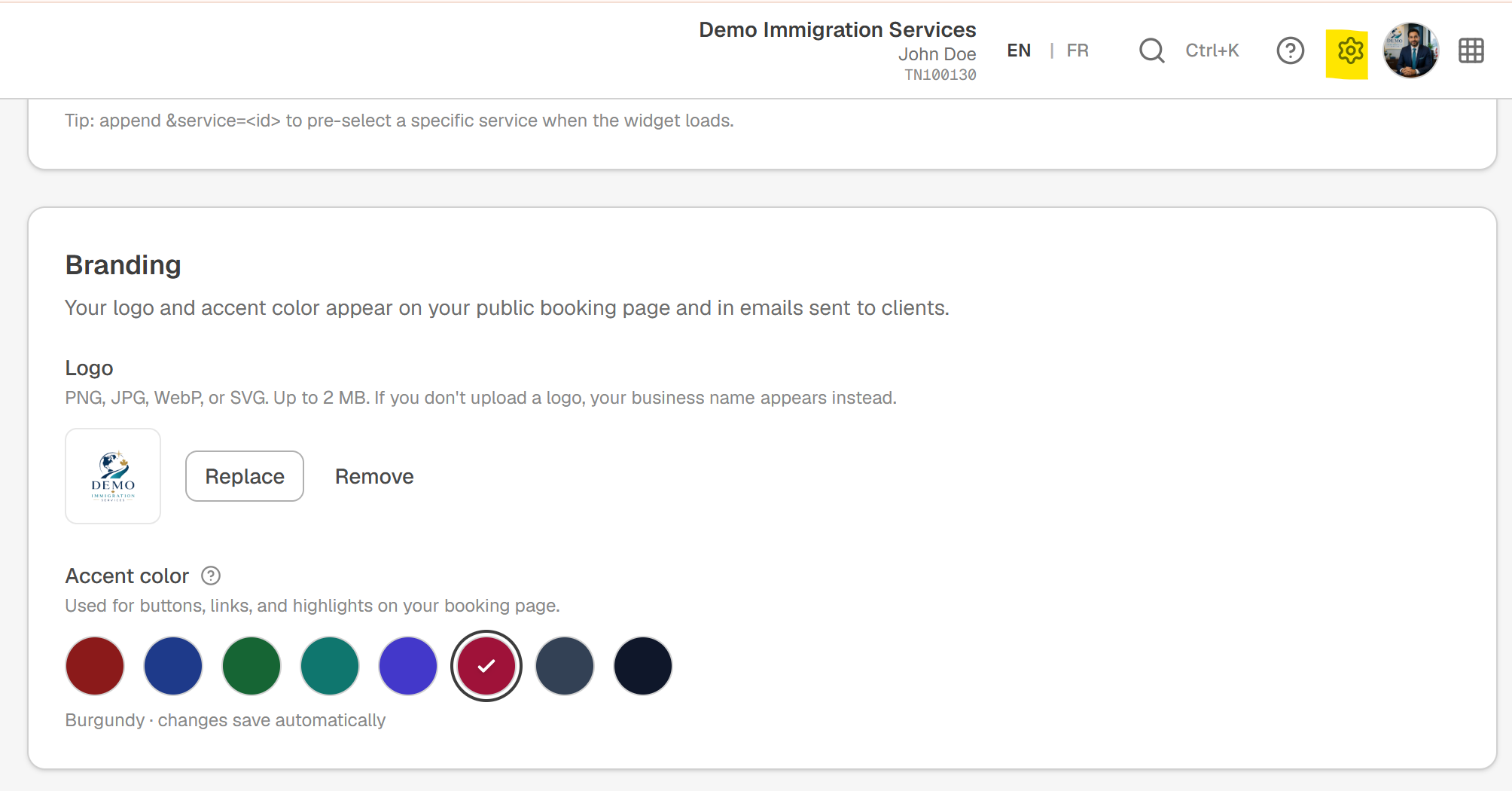
Upload a tenant logo and pick a brand colour under Settings → Branding. Both apply to your booking page, your emails, your bills, and your signed Service Agreements.
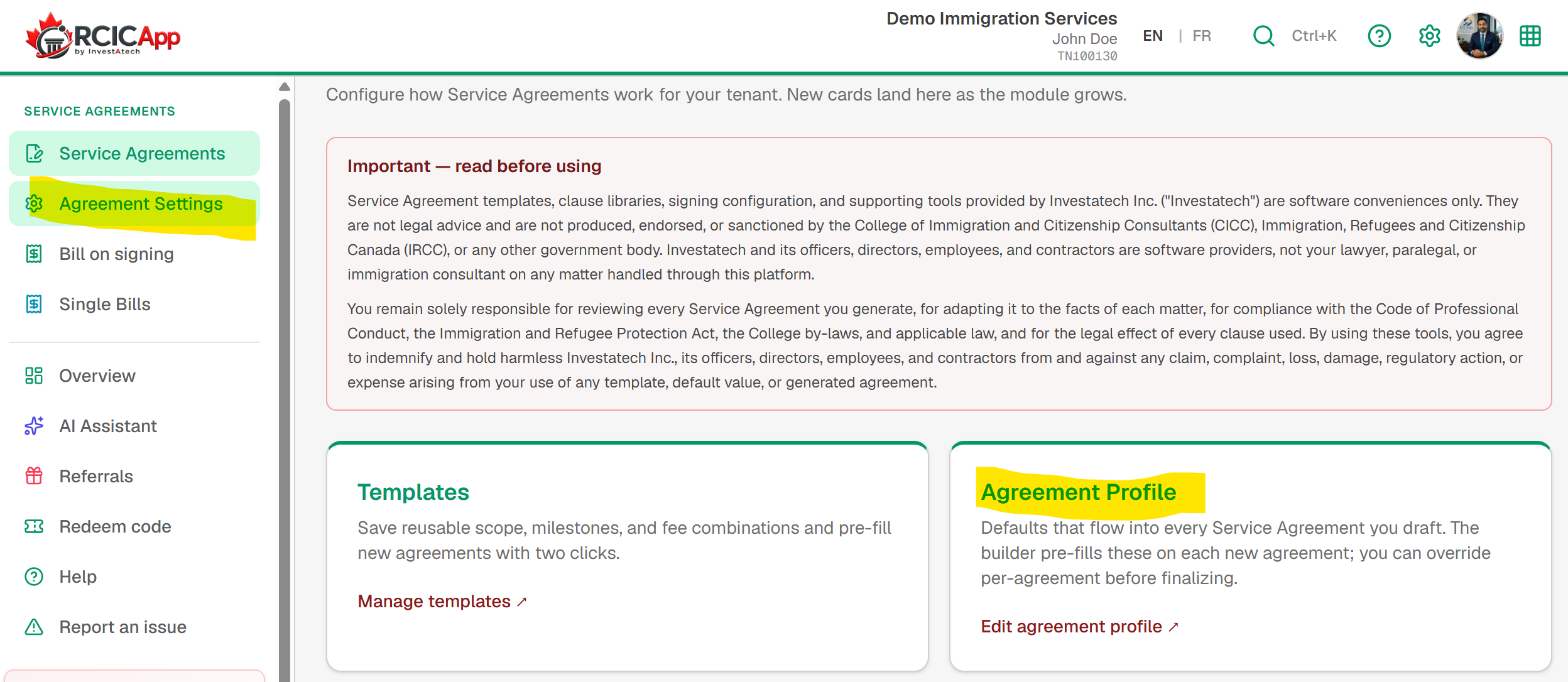
Set up your Agreement Profile (Service Agreements → Settings → Profile) with your default fee policy, refund rules, complaint handling contact, and accepted payment methods. Every new Service Agreement is seeded from these defaults.
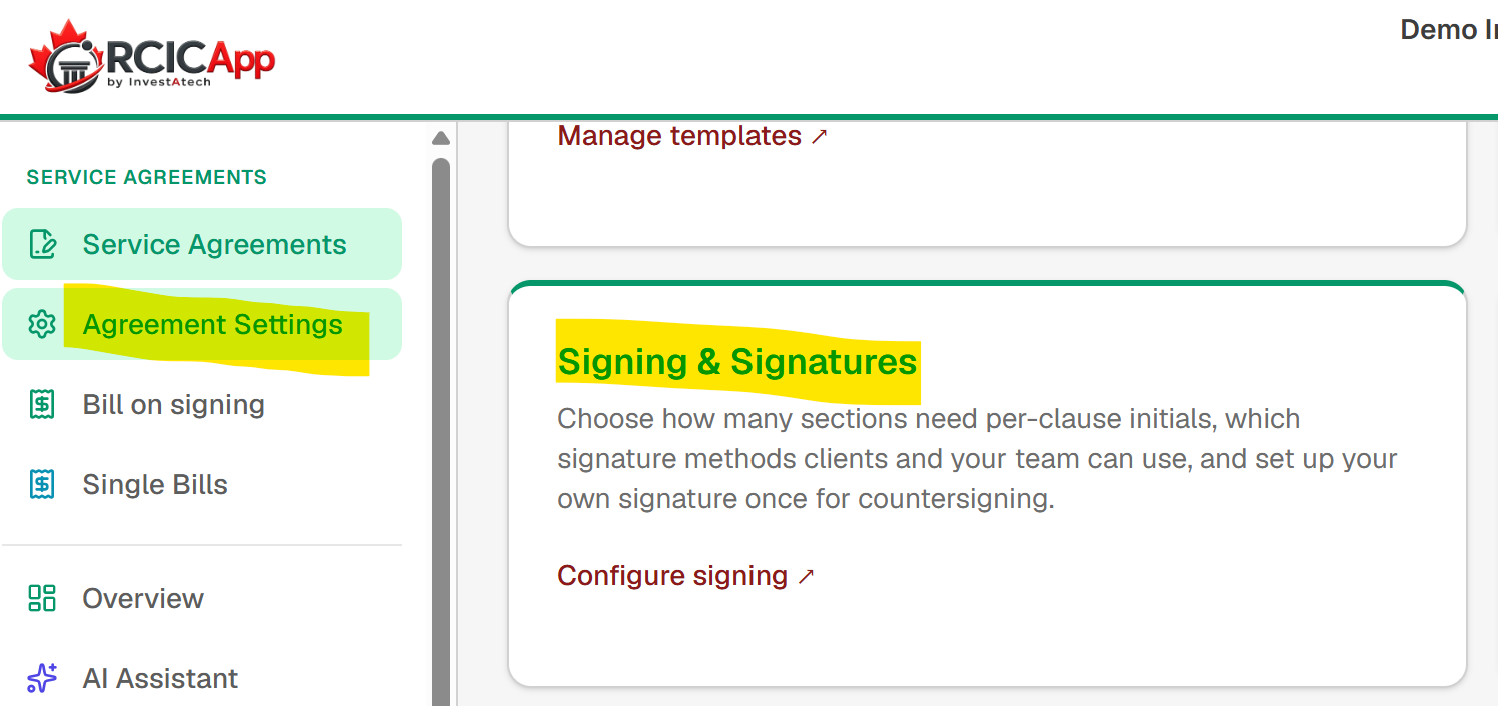
Capture a signature under Settings → Signing & Signatures so countersigning a Service Agreement is one click instead of three.
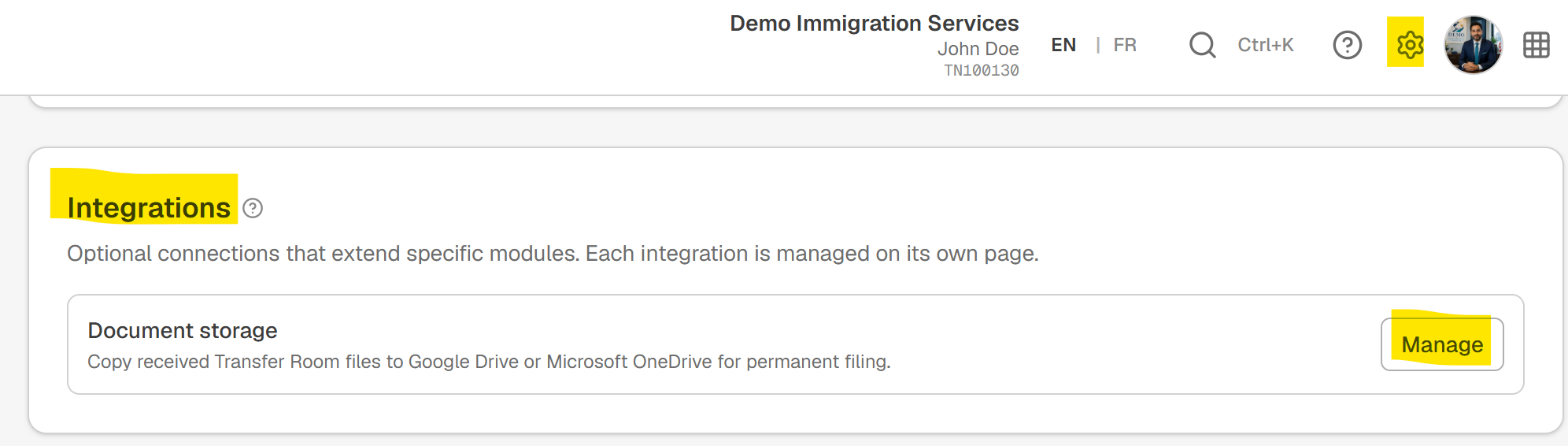
Connect your Drive (Google Drive or OneDrive) under Settings → Integrations → Document storage. Transfer Room provisions a full case-folder tree on agreement signature; without a connected Drive, the case-folder tree is skipped.