
Reporting issues
How to report a bug, weird behaviour, or missing feature — including attaching screenshots and PDFs to your report.
Download PDFWhat to use this for
The in-app Report an Issue form is the right channel for anything that is wrong with the platform but is not a security issue. Bug reports (something does not work the way the help docs say it should), weird-behaviour reports (a workflow that completes but produces an unexpected result), missing-feature requests (a workflow you cannot complete because the platform does not currently support it), and general feedback all belong here. The platform team reads every report. For security issues — anything that involves a potential cross-tenant data leak, an unauthorised access path, an exposure of client data, or any other security-shaped concern — use the dedicated info@investatech.com email channel covered in the Security and privacy chapter, not this form.
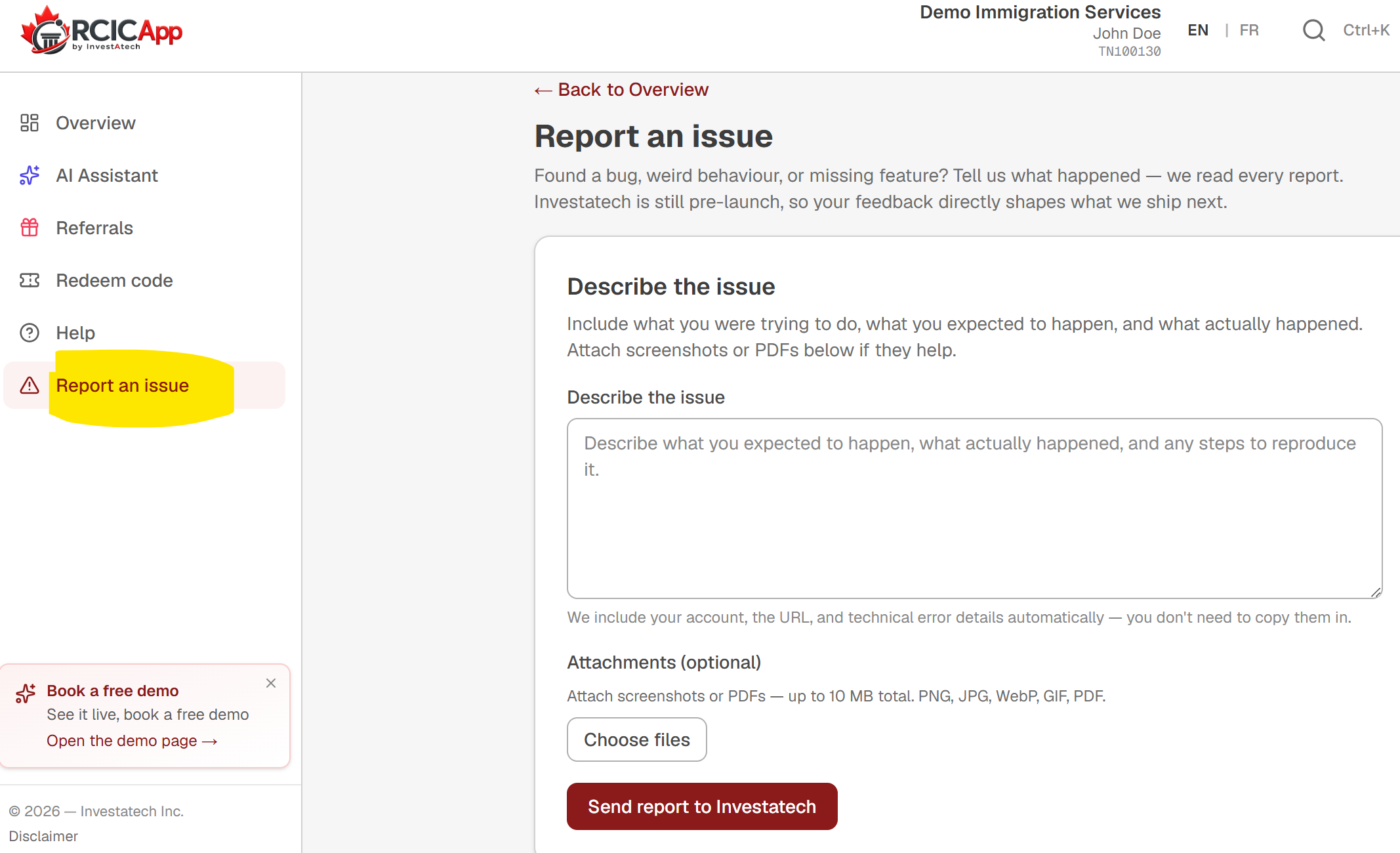
Where to find the form
Two entry points reach the same form. The first is Sidebar → Report an issue, available on every dashboard page in the always-present footer section of the sidebar (alongside Help and Disclaimer). This is the proactive entry point — use it when you have something to report and you went looking for the form. The second is a contextual surface: when the platform itself catches an unexpected error mid-action (an SA save that failed for an unknown reason, a Stripe webhook that returned an unexpected response, etc.), the error message often includes an inline 'Report this issue' button that pre-fills the form with the error context. Both paths land on the same /dashboard/report-issue page; the only difference is whether the form opens with empty fields or with a pre-filled error description.
What to include in a good report
A useful report answers three questions clearly: what were you trying to do, what did you expect to happen, and what actually happened instead. A one-liner like 'AI Populate is broken' is hard to act on; a paragraph like 'I uploaded a PDF passport scan + a Word consultation memo to the AI Populate modal on a brand-new Spousal Sponsorship SA draft, clicked Extract, expected the modal to surface client identity proposals from the passport scan, but the modal stayed blank for 60 seconds then showed Insufficient quota even though my dashboard shows 12/50 calls used today' gives the platform team enough context to reproduce the issue without a back-and-forth email exchange. If you can include a specific timestamp, a tenant slug, the URL you were on, and any error message text you saw, those are gold.
Attaching screenshots and PDFs
The form accepts image attachments (PNG, JPEG, WebP, GIF) and PDFs. Screenshots are the single highest-leverage attachment — a picture of the error state, the unexpected modal, the broken layout, the surprising button label tells the platform team in a glance what would take five paragraphs to describe accurately. Save screenshots from your operating system's standard keyboard shortcut (Windows: Win+Shift+S, macOS: Cmd+Shift+4, Linux varies by desktop environment) and drop them onto the upload field. For workflows that ended in a downloadable artifact (a wrongly-rendered signed PDF, an oddly-formatted invoice, a malformed email render), attach the PDF or the saved email file directly so the platform team can see exactly what you saw. The form supports up to a few attachments per report; total size is capped at 10 MB. Large attachments upload through a signed direct-upload URL to Supabase Storage so they do not travel through the platform's request body.
Note: Before attaching a screenshot that might include client data (a client name on a Service Agreement draft, an email address in an event list, a phone number in a booking row), consider whether you can crop or redact the screenshot first. The platform team treats attachments as confidential, but unnecessarily including identifiable client data in a bug report adds risk that adds no investigative value — the team can almost always reproduce the issue against synthetic data once they see the layout or the error in your screenshot.
Anonymous vs signed-in submissions
Reports submitted from inside the dashboard (you are signed in, the form is at /dashboard/report-issue) automatically carry your tenant slug + the email of the team member who fired the report. This is the easy path because the platform team can reach you directly to ask follow-up questions or confirm a fix. A separate public-facing /report page on rcicapp.ca exists for anyone who wants to submit a report without signing in (a prospect who hit a bug on the booking flow, an unauthenticated visitor who noticed something wrong, etc.); that public form does NOT support file attachments and does not auto-attach a tenant identity. The signed-in form (the one you would use as a tenant) is the more useful path because attachments + auto-identity make the report dramatically easier to act on.
What happens after you submit
On submit, the form does three things. It writes the report to the platform's tenant_reports table (so the admin Reports console at /admin/reports surfaces every report in one place for the platform team to triage). It fires an admin notification email to the platform team alerting that a fresh report landed. And it shows you a confirmation screen on the form page saying the report was received. There is no SLA on response time — the platform team is small and prioritises by impact (security issues take priority over cosmetic bugs; bugs that block a workflow take priority over UX papercuts; feature requests with multiple-tenant demand take priority over one-off asks). When the team replies, the reply arrives at your email address (the one tied to your dashboard login) from a platform-team mailbox; you can keep the conversation going by replying to that thread.