
Navigating the dashboard
How the top bar, sidebar, app launcher, language toggle, theme picker, profile popover, idle timeout, and trial banners fit together.
Download PDFThe dashboard shell
Every page under /dashboard is rendered inside the same shell: a thin top bar across the width of the window, a contextual sidebar pinned to the left edge from row two down to the footer, and the main canvas filling the remaining space. The shell holds steady while you navigate between modules, which means the language toggle, theme picker, help shortcut, settings shortcut, profile popover, and app launcher are always one click away no matter how deep you are inside a workflow.
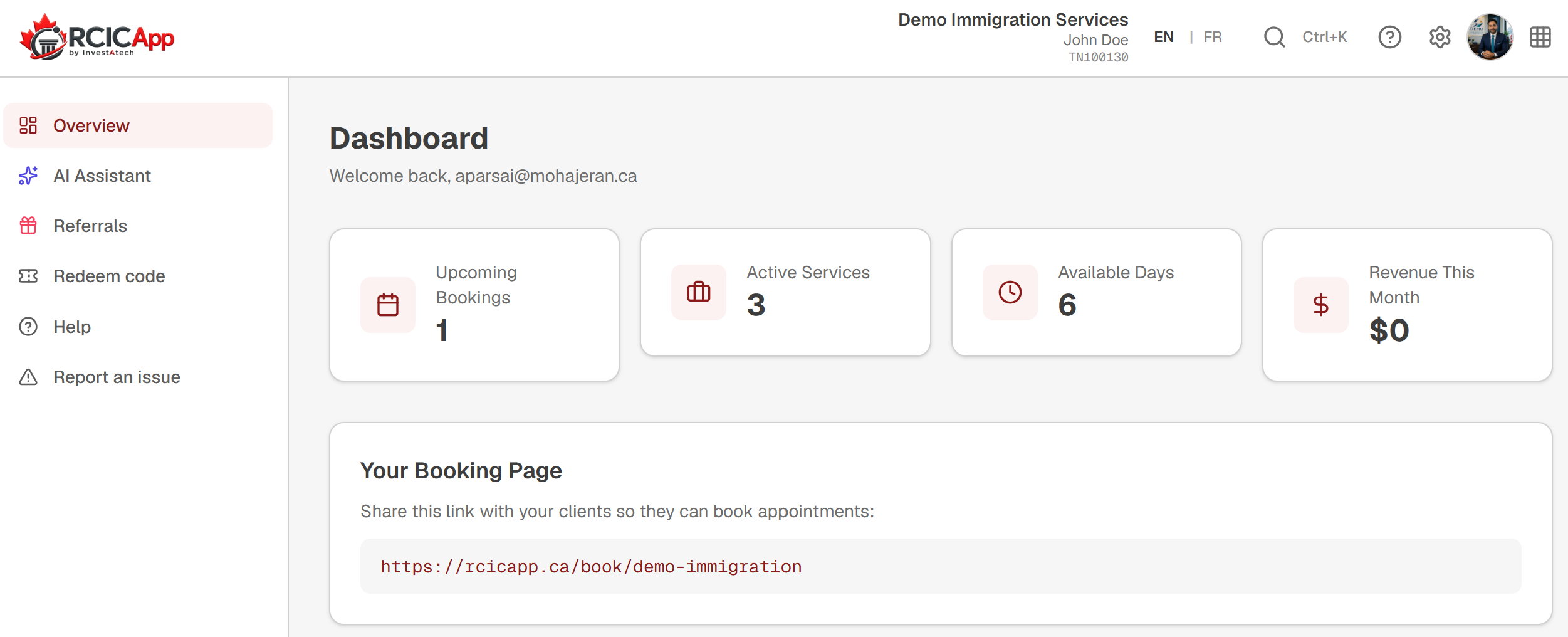
Below the top bar, the rest of the surface follows a simple rule: the sidebar lists where you can go next, and the canvas shows what you are doing right now. When you switch modules from the app launcher, the canvas reloads to the new module's primary page and the sidebar swaps its module-contextual section to match. The bottom group of always-present sidebar entries (Overview, AI Assistant, Referrals, Redeem code, Help, Report an issue) does not move, so navigation back to the home dashboard is always in the same spot.
The top bar
The top bar is split into two halves. The left half carries the RCIC App wordmark plus your tenant identity: the company name (with the business name on a second line if the two differ) and the signed-in user's display name and role badge. Clicking the wordmark takes you back to the Overview page (the same target as the Overview sidebar entry below). The right half carries six icon-only controls reading left to right: the EN / FR language toggle, the Help shortcut, the Settings shortcut, the profile popover trigger, and the 9-dot app launcher trigger.
Note: The top bar is sticky. Even when you scroll deep inside a long Service Agreement Builder or a 200-row bookings list, the bar stays glued to the top of the viewport so the app launcher and profile popover never disappear off-screen.
The app launcher (9-dot grid)
The 9-dot icon at the far right of the top bar opens a four-column grid of every module your account can see. The grid mirrors the platform's full module catalogue (currently seventeen modules) rendered as 3D tile artwork plus the module name and a one-line blurb. Clicking a tile takes you to that module's primary landing page; if you click the module you are already inside, the launcher closes silently. Modules that are visible to your tenant but locked behind Premium still appear in the grid; clicking lands on a friendly Premium upsell card rather than a dead end.
Modules a member explicitly cannot access (when the Owner has turned off that module in Settings → Team → Module access for a particular seat) disappear from the launcher entirely for that member. The launcher is the canonical place to discover what is on the platform, so the rendering is generous: visible by default, hidden only when the Owner has explicitly revoked access.
Switching between modules
There are three ways to switch between modules. The app launcher is the canonical entry point — click any tile and the canvas loads the new module's primary page. The second way is direct URL navigation: typing /dashboard/transfer-room (or any other module URL) into the address bar resolves the active module from the URL prefix, the sidebar swaps its top section accordingly, and the canvas loads the page. The third way is a cross-module link inside the canvas itself: many pages link out to a sibling module's settings or a related record. Clicking such a link updates both the URL and the sidebar context in a single navigation.
The profile popover
Clicking the avatar circle at the right of the top bar opens the profile popover. The popover shows your display name, the email you signed in with, your role badge (Owner, RCIC, or Assistant), the seat type you occupy, and a small group of shortcuts: My Profile (the canonical place to manage your headshot, signature, RCIC attestation, calendars, and personal preferences), Settings (workspace-wide configuration the Owner manages), and Sign Out. Sign Out lives here, not in the sidebar — the sidebar is reserved for navigation between work, and signing out is an account action.
EN / FR language toggle
The EN / FR toggle at the right of the top bar switches the entire dashboard chrome between English and Quebec French. The setting is persisted in a cookie and survives sign-out, sign-in, and tab close. Every label, button, form field, validation message, and email subject line on the dashboard side has paired EN and fr-CA translations in the platform dictionary; switching the toggle is instant and does not require a page reload.
Note: The dashboard language is separate from your client-facing language settings. Your booking page, public agreement portal, intake forms, and Transfer Room client portal all honour the client's locale (the visitor's URL / cookie / browser preference, ranked in that order). The dashboard toggle controls only what YOU see while signed in.
The theme picker
Three dashboard themes are available: Light (white surfaces, maroon accents), Colourful (white surfaces plus per-module accent colours that tint the sidebar icons, page headings, and active sidebar entries), and Dark Lite (charcoal surfaces with maroon accents preserved). The theme is per-user, not per-tenant: each teammate picks their own and your Owner's choice does not propagate. Switch themes from My Profile, in the Theme card at the top of the page. The choice persists across sign-out and applies the moment you save.
The themes scope strictly to /dashboard. Your public booking page, the public agreement portal, the Transfer Room client portal, intake forms, and all other client-facing surfaces follow your tenant's branding (logo + brand colour set under Settings → Branding), not your personal dashboard theme. The /admin superadmin console and the marketing site at rcicapp.ca are also out of scope: they have their own visual identity that does not honour the dashboard theme cookie.
The disclaimer modal
The sidebar footer carries a Disclaimer button. Clicking it opens a modal that spells out the platform's independence from the CICC, IRCC, and any government body. The disclaimer is reachable from every dashboard surface (since the sidebar is always present) so no tenant can plausibly mistake the chrome's polish for regulator endorsement. The same disclosure appears on the marketing site at rcicapp.ca/disclaimer; both surfaces stay in lockstep when the platform team updates the wording.
Idle-timeout and session refresh
The dashboard times out after 18 minutes of inactivity. Two minutes before the timeout, a countdown modal appears asking whether you want to stay signed in; clicking Stay signed in resets the clock, clicking Sign out (or letting the countdown run out) logs you out and bounces back to the login page. Activity is detected through normal interaction (clicks, key presses, scrolling); a server-enforced cookie keeps the multi-tab story honest, so signing out in one tab signs you out everywhere within a couple of seconds.
Note: If you are typing inside a long Service Agreement Builder or a long Booking Notes editor, autosave kicks in every 800-1000 milliseconds and serves double duty as activity. You will not lose work to an idle timeout while you are actively editing.
Responsive behaviour
The dashboard is built for laptop and desktop use first. On viewports narrower than the laptop break, the sidebar collapses behind a hamburger button and the top bar's icons compact into a single overflow menu so the wordmark and tenant identity stay legible. The canvas reflows to single-column stacking where applicable (settings cards, the Booking Notes editor, the Service Agreement Builder). Some surfaces deliberately surface a 'best viewed on a wider screen' notice on small viewports: the Secure PDF Tools workspace is the most prominent example, because thumbnail grids and side-by-side previews degrade quickly below the laptop break.
Where to go from here
My Profile holds everything personal to your account: display name, headshot, signature, signing preferences, RCIC attestation, your connected calendars, and your name overrides for translated agreements. See the Your profile chapter.
Settings holds everything workspace-wide that the Owner manages: company info, branding, Stripe Connect, accountant CC on bills, team invitations, Premium subscription, languages, integrations, and account deletion. See the Workspace settings chapter.
Help (sidebar bottom) opens the in-app FAQ and AI help chat. The FAQ is organised by module and is the fastest way to answer 'how do I X?' questions.
Report an issue (sidebar bottom) is the right channel when you have hit a bug or a gap. Screenshot uploads are supported and reach the platform team directly.